
CSM101
-
Posts
654 -
Joined
-
Last visited
-
Days Won
10
Content Type
Profiles
Forums
Events
Store
Downloads
Gallery
Everything posted by CSM101
-
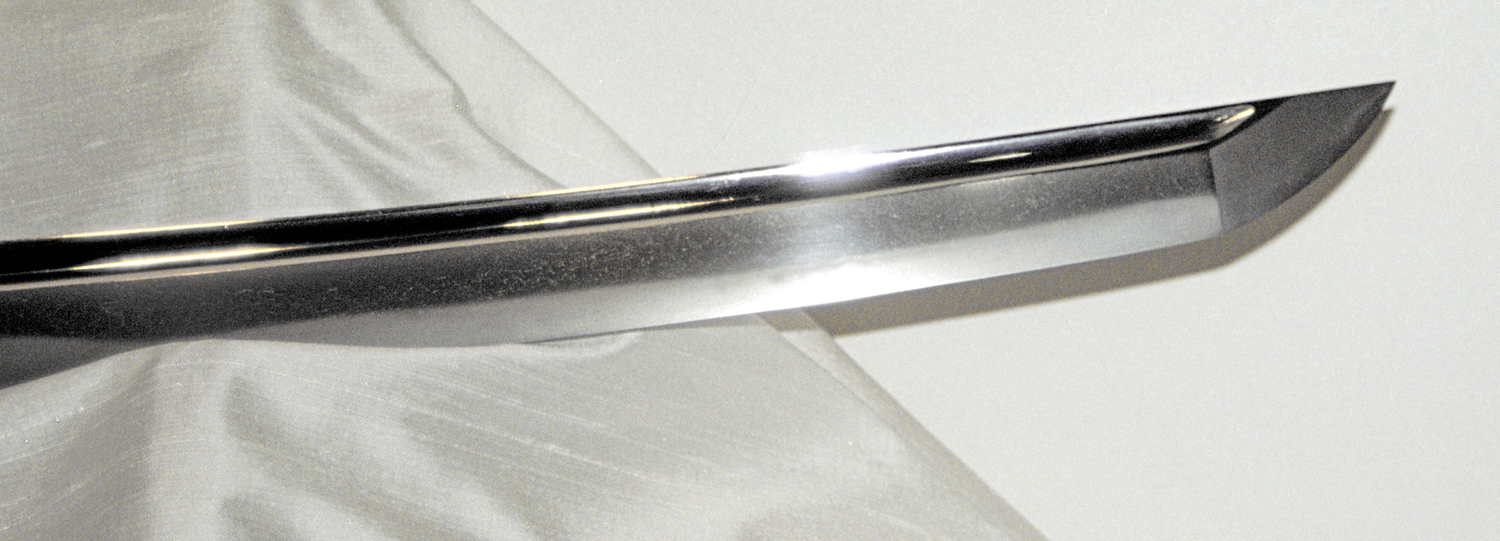
Okay, just a few words from my side: Your photos have ISO 800 and this is too much. You can see a lot of noise in the dephts. Set it to 100 or at least 200. With your Canon Camera you got DPP as a RAW-Converter. So you should correct white balance, dephts, light, black and white. After that, there is more visible than you think. And with Photoshop you can change the background to black. You don´t need black satin, but it helps. Here are two of your photos and so you can compare before/after. Uwe G. PS: NICE SWORD.


-
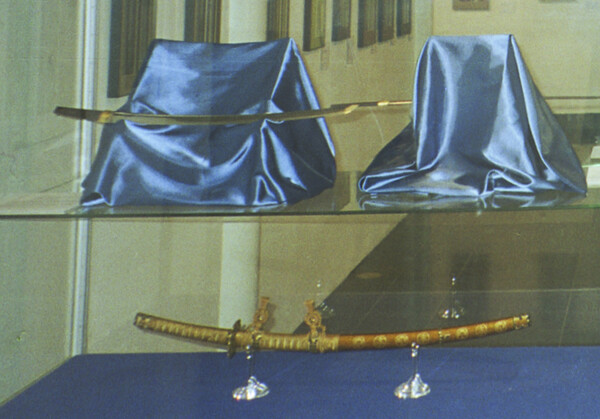
Okay, here is a kodachi by Nagamitsu. Signature, boshi, hada and hamon. Just for better understanding. Uwe G.

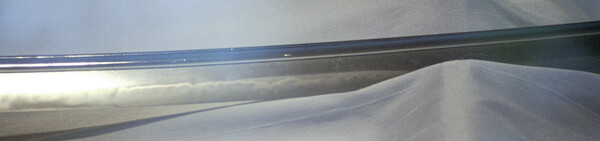
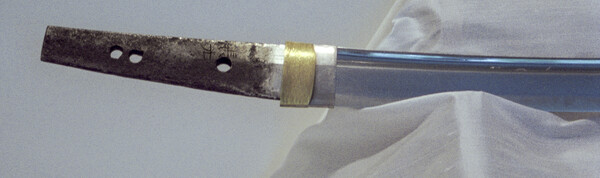
-
Maybe this one is better to read. The other side is just a guess. Uwe G.

-
Thank you Brian, when you think it is worth adding it to the articles section. As a "candy" my favorite: 3 x Rai Kunimitsu in hiRes: http://www.daten-transport.de/?id=SWVNWmFqCn6D The link will work for only 2 days. So, be quick! Uwe G.
-
I know it´s been a while. But last year I found most of the negatives at the bottom of a drawer. So, after scanning, retouching, etc. this is the result. Enjoy! And before I forget: with kind permission of the NBTHK European Branch. Uwe G. Solingen 2002a.pdf
-
Maybe you find this more interesting then: Some things are well explained, some things are interesting and some things I do different. Uwe G.
-
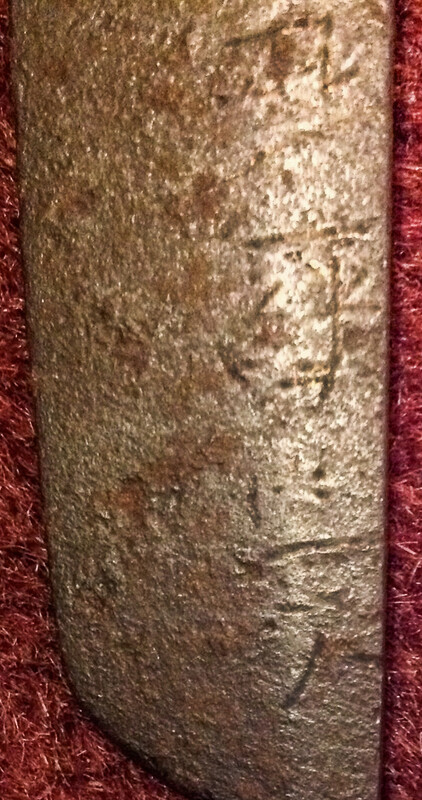
Okay, this is, what can be made visible. But I think, it doesn´t make any sense. Uwe G.
-
Thank you all for the informations. In the end, there is only one suggestion for me: I need more books! Uwe G.
-
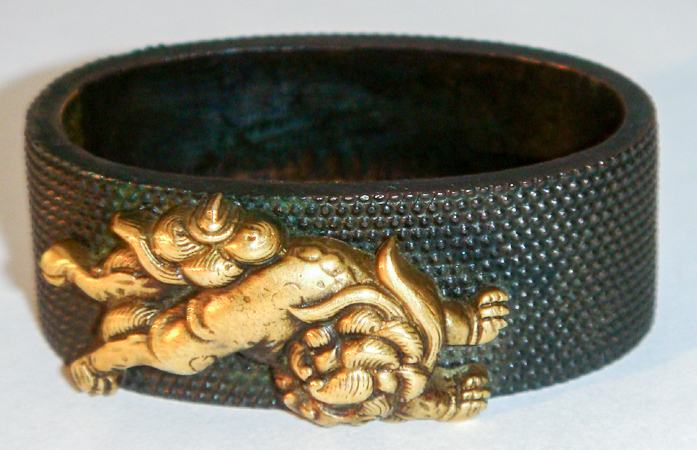
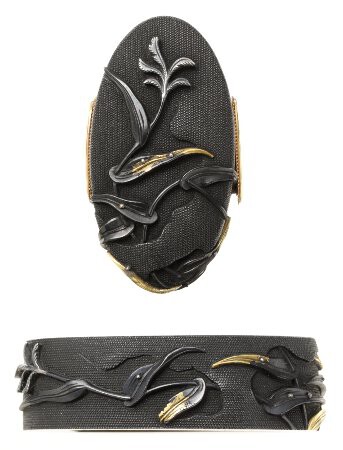
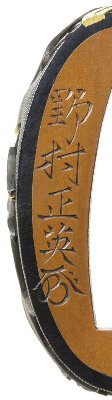
Morning, well, the shishi looks more like a gremlin to me. But I only found this example in the indernet and when I make a comparison....just poor. And with the different "Masa" came the gimei. Uwe G.
-
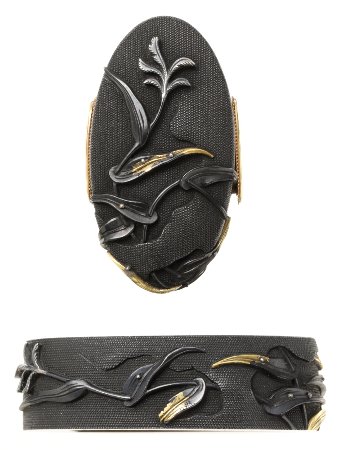
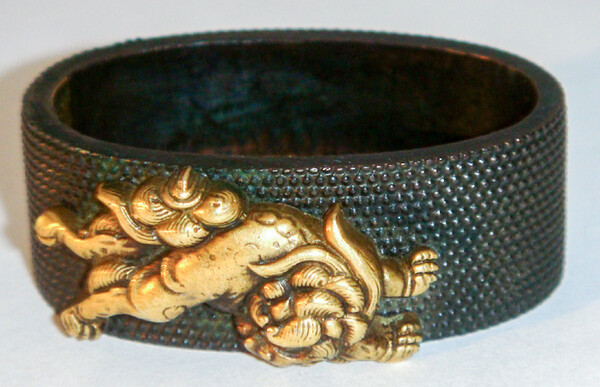
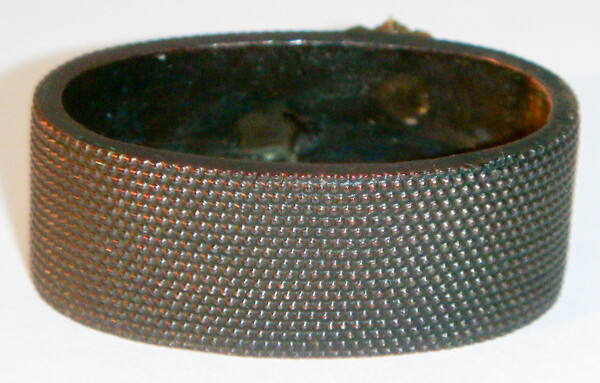
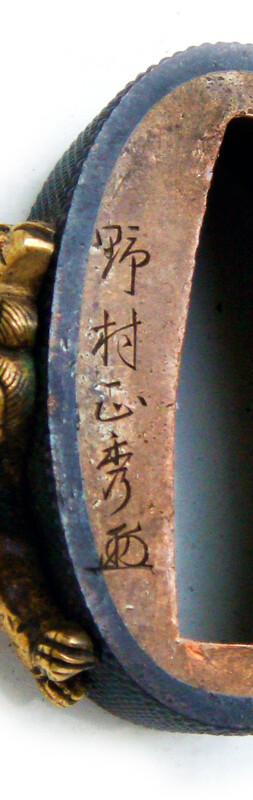
A friend of mine showed me this fuchi and wanted a translation and maybe an okay for the signature. I find the quality so poor, that I can only say gimei. But I have no further informations and so I ask for confirmation. Thank you Uwe G.
-
Hello Ron, thank for your kind words. And don´t worry. This here is no wizardy, just digital image correction. Wizardy is more like the next one: convert a photo into a digital oshigata. Uwe G. Oshigata.pdf
-
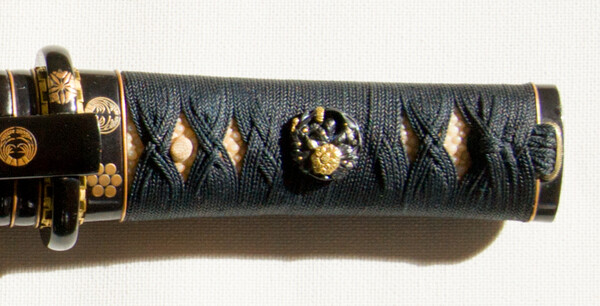
I know, that Zenon van Damme makes tsukamaki. He was recommended to me, but then the tsuka would have been more worth than the sword. Ob the other hand, this was made by a certain german gentleman, who want´s not to be found. Uwe G.
-
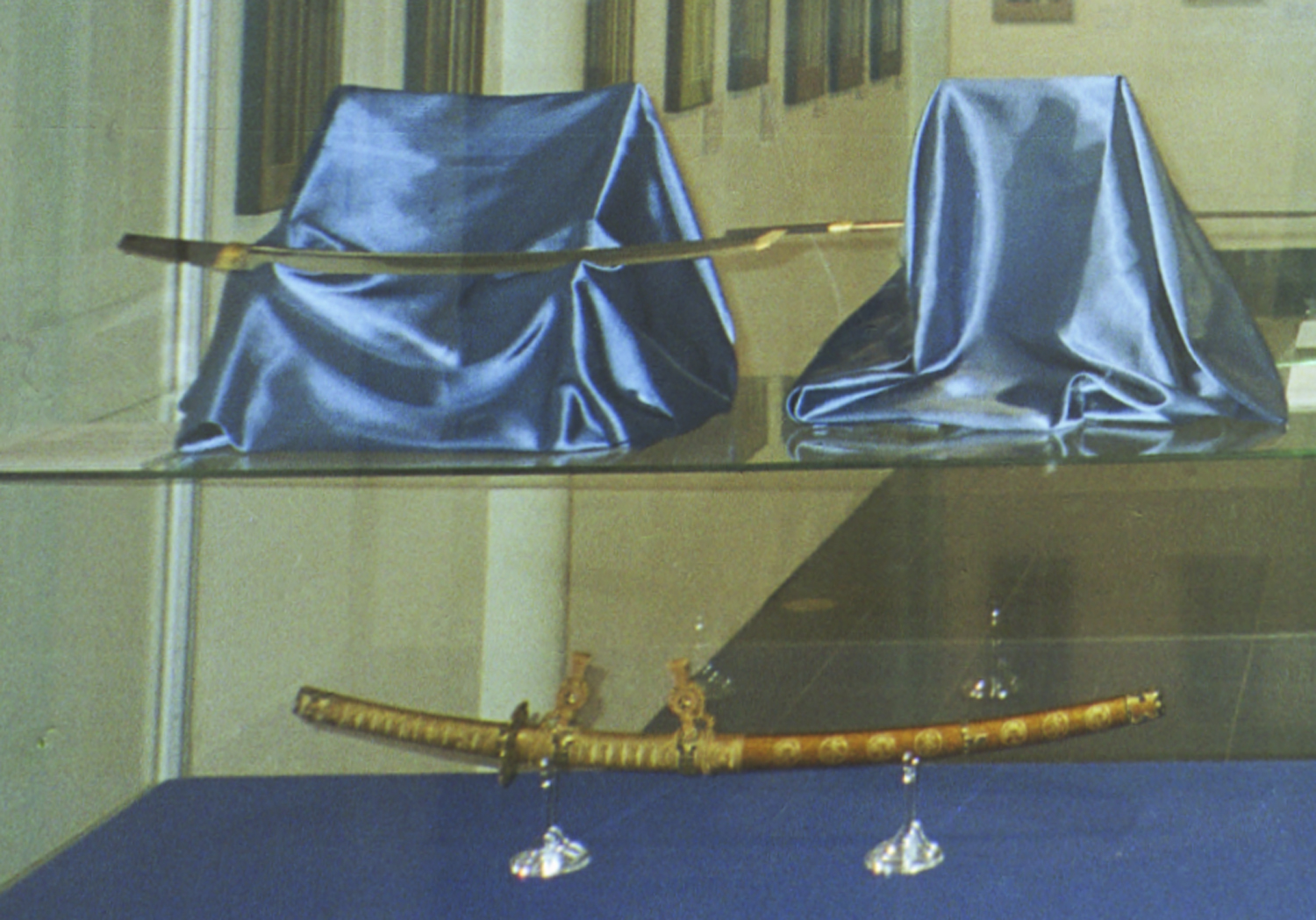
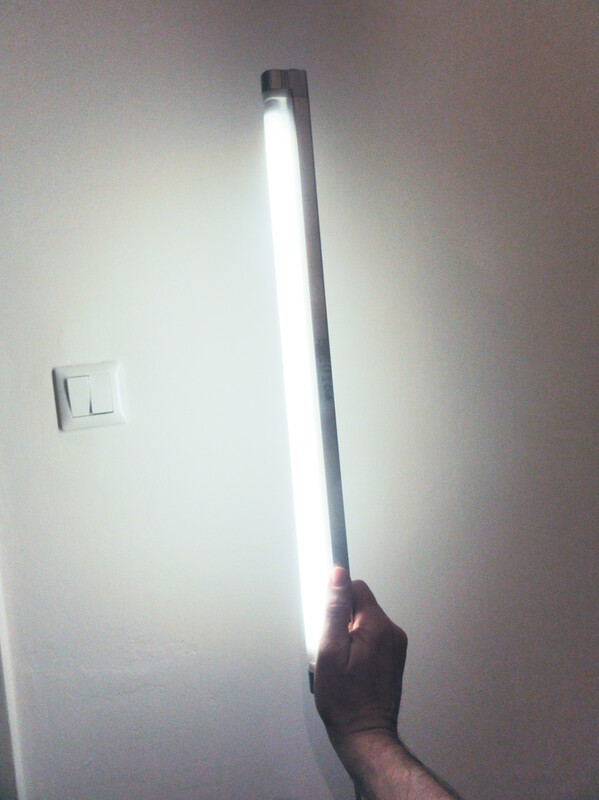
The koshirae with tanto,there I only used broad daylight. The rest was Adobe Camera Raw or ACR. Photos like these I only do in Raw. Distance 1,20 m and so daylight is enough. When I get closer with a macro lens, then I use something like this. It´s a kitchen lamp. I can move it and it is a real hard and bright light. 15,00 EUR. ACR will do the rest. White balance especally and clarity. Hada comes out very good. And it is the same light for the whole length. Distance 30 cm and closer.
-
Dodge and burn And don´t miss the second link... :D Uwe G. Dodge and burn.pdf
-
Hizen Kuni ju Tadahiro. The signature seems to be good. But please try to post bigger photos. Uwe G.
-
I made a new tutorial "Sharpen a photo". Back to, where it belongs: "Help us improve our photos" Uwe G.
-
Sharpen a photo Uwe G. Sharpen a photo.pdf
-
Congratulations!!! You made it! Four things I always see, that can easily be corrected. White balance, too dark, not sharp enough and making something unreadable readable. Two points I already explained. Maybe we should move back to improving our photos and I write two more tutorials if you want. Have a nice evening Uwe G. PS: Your version is better than mine.
-
Seems to be a good idea. I have the feeling, that we see a NMB Chainsaw Massacre in the near future. Uwe G.
-
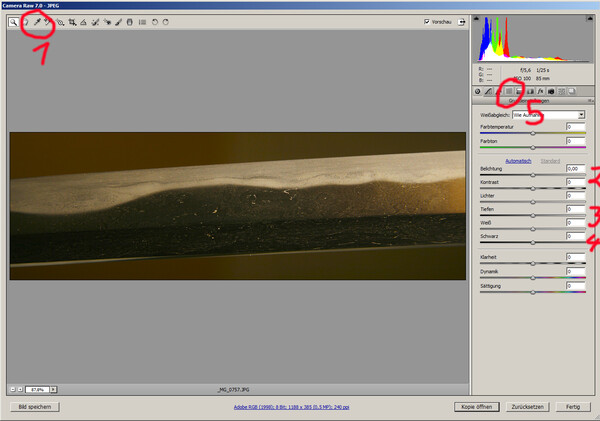
Morning Hoanh, Hope, this is a better screenshot now. And for the "real" colour there is something called "colour correction with curves". Sounds complicated and is complicated. But after a few hundert photos you can do that in less than 10 minutes. Greetings Uwe G.
-
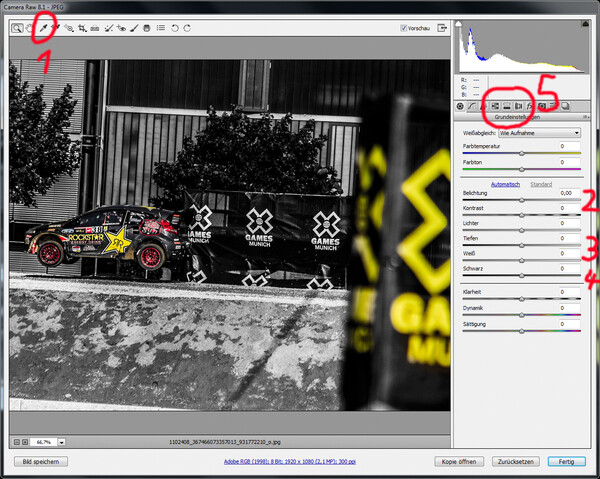
Okay, the trick is like always: there is no trick. The photo of Hoanh is already good enough. But the digital process with Photoshop is mostly a mystery. Let´s start then. First of all: every photo I work with will be opened in Adobe Camera Raw. Camera RAW is a RAW developer and gives you the possibility to make the hard part first. It is included in Photoshop CS or Elements. Open as …and then you choose Camera Raw. If you use a Canon Camera, then I recommend DPP or any other RAW Converter. It doesn´t matter if it is a Jpeg, a Bitmap, a TIFF or a RAW-file. Make the most obvious things with a RAW converter. Down you see Camera Raw and a different photo. With Hoanh´s photo I use 1 for the white balance. First the pipette and then click somewhere on the blade, where it is yellow. After that the colour is a little bit more correct. The photo is too dark, so 2 for the exposure (or brightness in different versions). 3 is for the depths. That will bring more light to the shadows. There is no effect to the parts that are already okay. And last part 4 is for making black to grey. That’s the main work and very easy to do. And now comes the hard part. You could open the photo just like always. But I use SHIFT and then I can open the photo as a smart-object. On the right side of Photoshop you see “Layers”. When you click with your right Mouse-button on the layer you see, that you can make a “New Smart-object as a copy”. Choose that and now you have two versions of the same photo. And that is the only trick. When you double-click on the small photo in layers it will be opened again with Camera Raw. And then I choose 5 for the correction of the colours. In one photo I make the saturation for yellow, green and orange to 0 and the photo is almost black and white. Donw in the right corner is a litte symbol, looks like a square with a circle in the middle. Click and you have a mask in one layer. Now you choose a soft brush with black and you can go over the parts, that you don´t like and they just dissapear. And in the end you have a wonderful photo. If you deleted too much, press x and suddenly you can bring with white the deleted parts back. If you want to see, how it really works, I recommend the book from Scott Kelby “The magnificent seven” Lesson 3 with a BMW: It is the best tutorial about layers and masks I have ever seen. And if you know how to use, when to use and especially why to use layers and masks then you already mastered the first dan in Photoshop-Do. Okay, that´s a little bit too enthusiastic. Third kyu. You can look in youtube, if you can find something with layers and masks, but most explanations are not for beginners. The next time we use a photo from Barry Hennick, theme: “Sharpening” :D Uwe G.
-
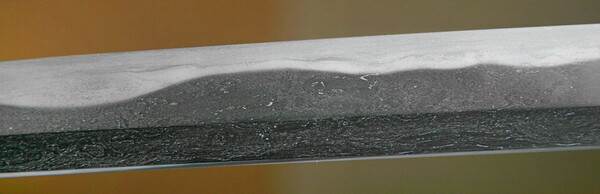
I really think, that this is an outstanding blade with many activities. I just played with one of the photos and here is my version. In case you want to know, what I did, I can make a short tutorial about it. Uwe G.
-
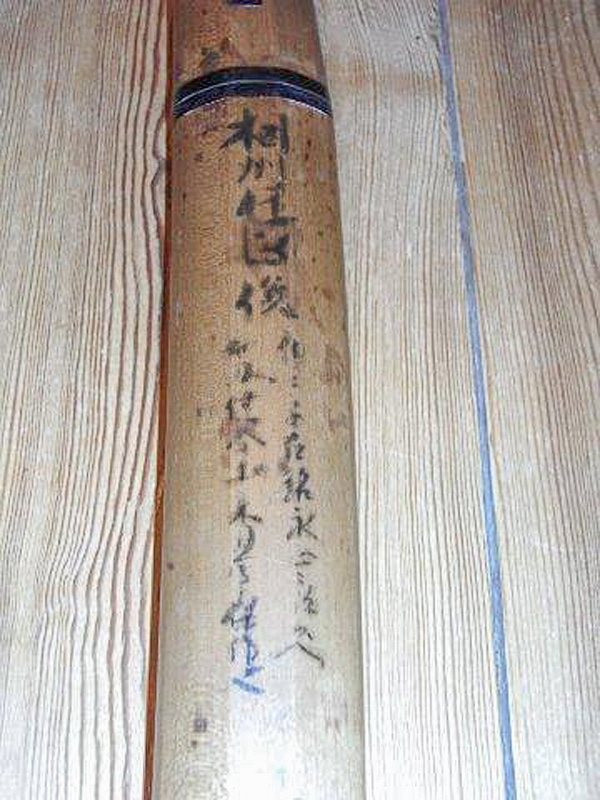
Hi, I hope, this is a little bit helpful when reading the sayagaki. Uwe G.

-
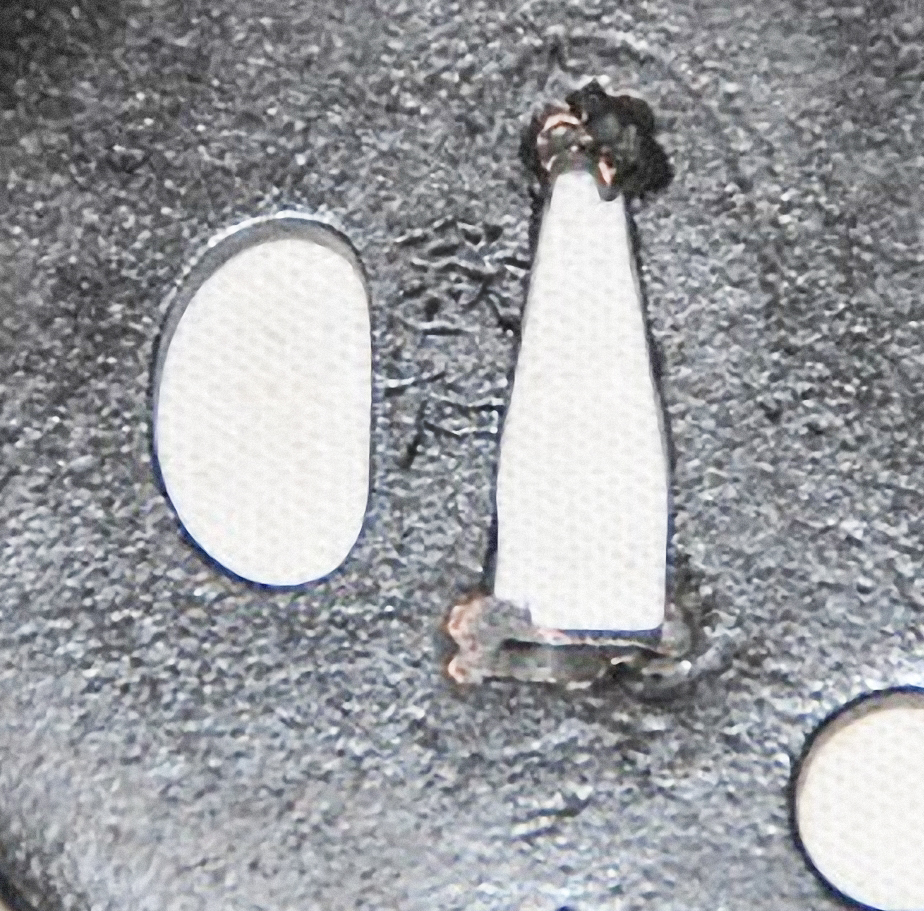
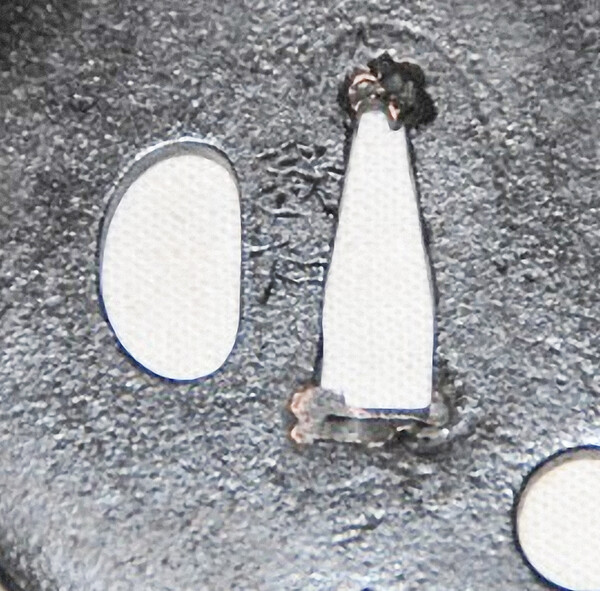
Hi Steve, I tried to make the signature more "readable". Maybe someone can give you the right answer. Or you post a new photo only the signature. Greetings Uwe G.
-
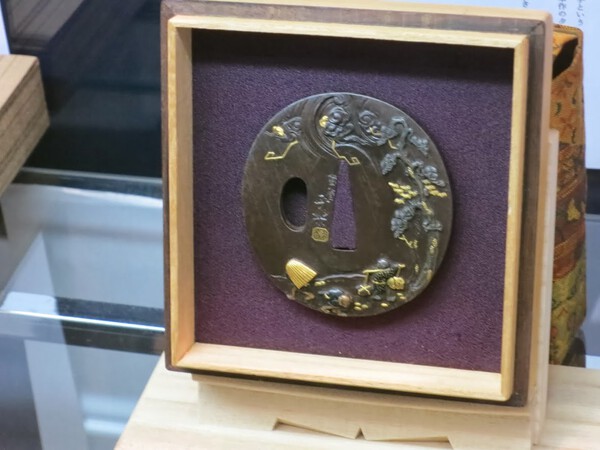
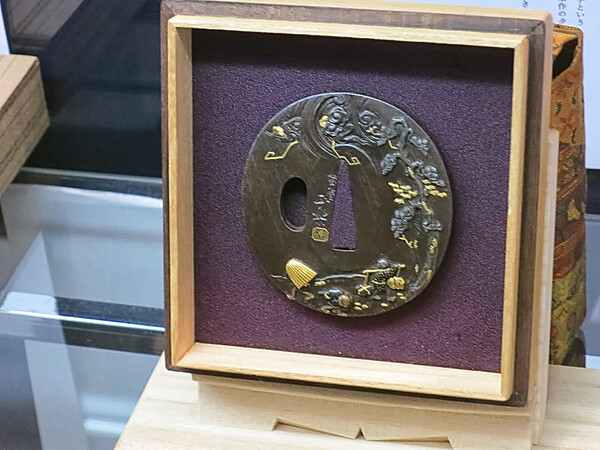
Most of the tsubas are in poor condition. But thank you for the translation. Uwe G.